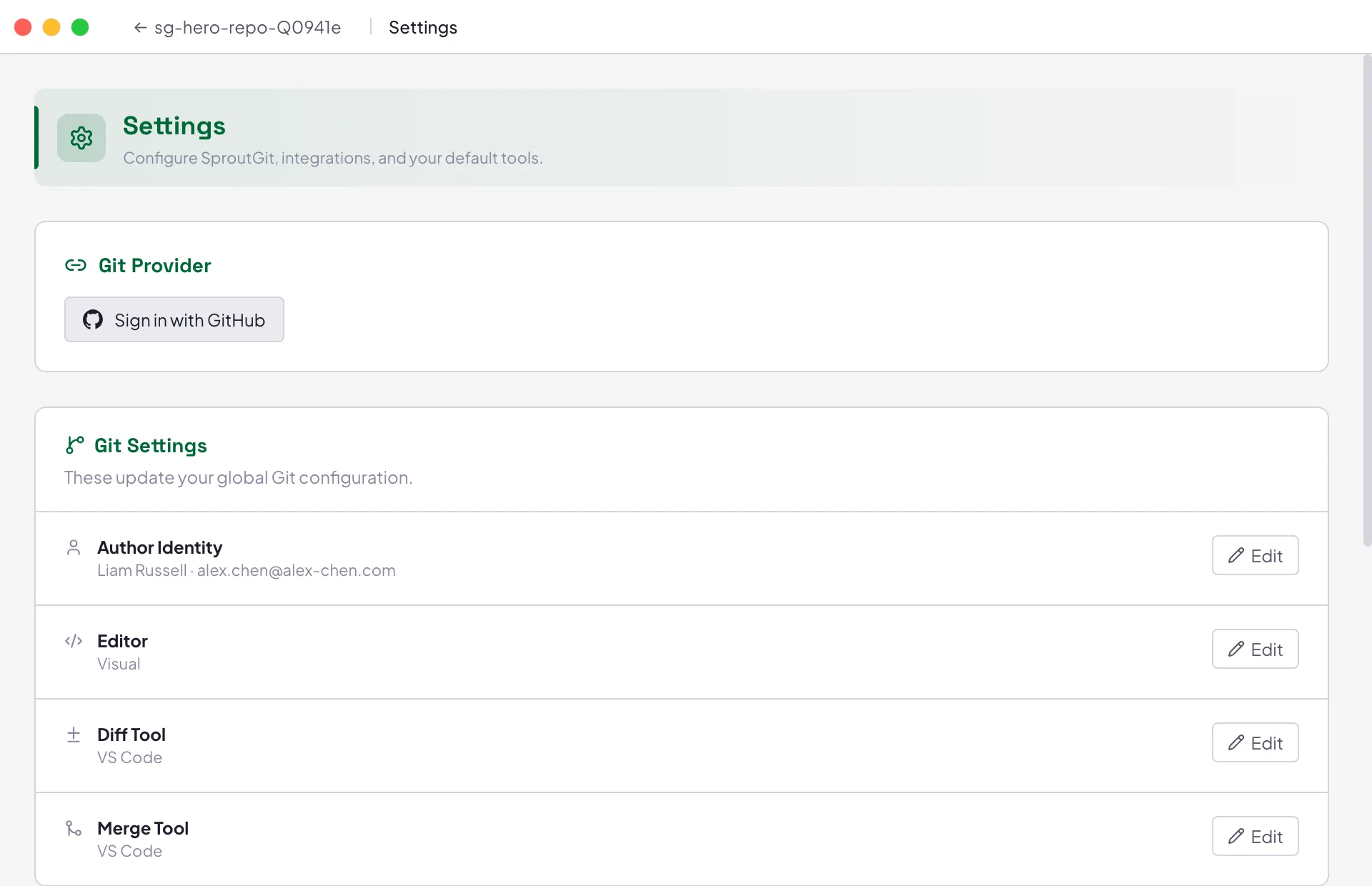
Settings panel
Open Settings from the title bar (gear icon) or from a workspace’s title bar. Sections that depend on an open workspace (MCP Server) show a prompt to open one instead.
Git Provider
Section titled “Git Provider”Sign in to GitHub via device-flow OAuth (you’ll see a code to enter at
github.com/login/device) to enable cloning your own repos by name with
autocomplete, instead of pasting a URL.
Git Settings
Section titled “Git Settings”Updates your global Git configuration (~/.gitconfig), not anything
scoped to one repo:
- Author Identity —
user.name/user.email. If you’re signed in to GitHub, there’s a shortcut to fill these from your GitHub account. - Editor —
core.editor, used for things like interactive rebase messages. - Diff Tool —
diff.tool. - Merge Tool —
merge.tool.
Each row auto-detects installed tools as quick-pick presets, or accepts a custom command.
- AI Agent — the coding agent SproutGit launches for you. See Setting up a coding agent for presets, custom commands, and Terminal vs. Integrated mode.
- AI Commit Messages — a separate command (same preset list) run against your staged diff and recent commits to draft a commit message.
MCP Server
Section titled “MCP Server”Per-workspace: enable/disable the local MCP HTTP endpoint, change its port, and write connection config for Claude Code, Cursor, Kiro, Gemini CLI, or Codex CLI. See Using the MCP server for the full picture, including the security model.
Default Shell
Section titled “Default Shell”The shell SproutGit spawns for integrated terminal sessions. Auto-detects shells available on your system as presets, or accepts a custom path.
- SproutGit version — the running build’s version (or
dev buildwhen running from source). - Git — whether SproutGit found a system Git installation and which
version, or “Not found” if Git isn’t on your
PATH— see Installation. - Updates — check-for-updates status, and an install action once a newer build has finished downloading.